A PDF converter can look like a harmless shortcut: drop in a file, wait a few seconds, download the result. But if that file is a tax return, a client contract, a medical record, or a scan of your driver’s license, the shortcut has a second step that’s easy to overlook. You may be handing the document to a company you know nothing about.
That’s a poor trade for a routine formatting job. My position isn’t that every free online converter is malicious, or that every document must stay off the internet. It’s that uploading a confidential file to an unknown converter creates an avoidable privacy risk when the same job can often be done on your own device. The converter’s price is beside the point; the question is who gets a copy of the file.
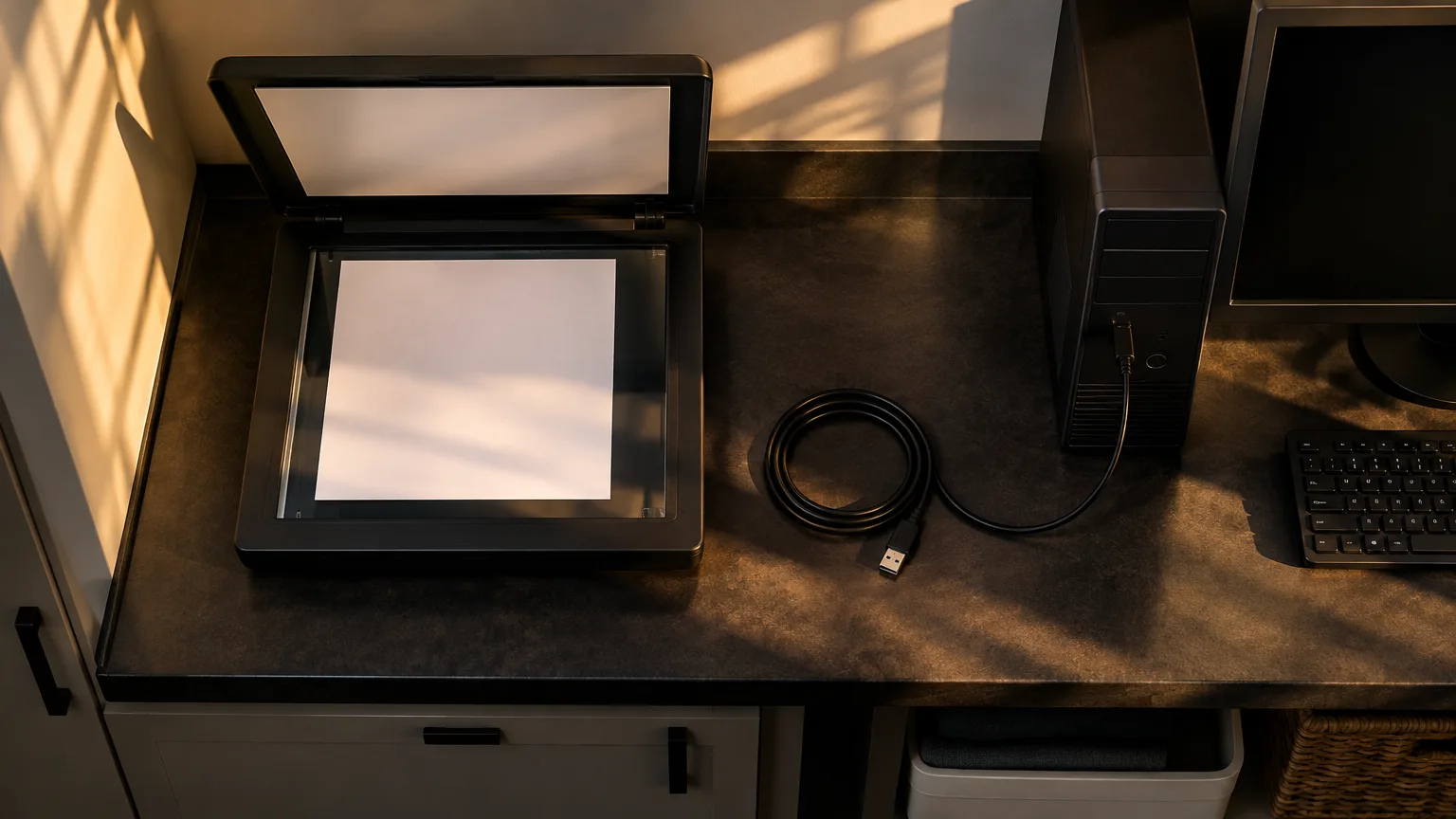
The risk starts when the file leaves your device
Many browser-based converters send documents to a provider’s servers for processing. That isn’t speculation about how web tools work: Adobe says its Acrobat online services upload files to Adobe cloud storage. It also makes an important distinction: files used while signed in are saved to the user’s Adobe account, while files used without signing in are deleted from its servers after a period of time. Those are useful details from an identifiable provider. With an obscure converter, you may have far less information about where the file goes, how long it stays there, or who operates the service.
An upload does not mean someone will read your document. It does mean you must trust the service to handle it properly. A promise to delete files after processing is better than no promise, but it isn’t the same as never transferring the file. Nor does a padlock in the address bar settle the question. HTTPS protects data in transit; the Federal Trade Commission notes that encryption does not establish that a site is legitimate.
There’s also a more direct threat than uncertain retention. In March 2025, the FBI warned about fraudulent free file-converter tools that can return malware-laden files or collect information from documents people submit. That warning does not describe every converter on the web. It does show why a search result promising a quick PDF-to-Word conversion is not, by itself, a reason to trust the site with an account statement.
The sensitivity of a document is not always obvious from its filename. A one-page form may contain an address and signature. An otherwise ordinary contract may contain bank details in an appendix. A PDF can also hold comments, metadata, and other hidden material; Adobe’s guidance on redaction and sanitization treats visible content and hidden information as separate things to remove before sharing. Cropping a page or placing a black shape over text is not a dependable substitute for proper redaction.
The convenience argument is real—but it has limits
The best case for an online converter is simple: it works without an installation. You can switch devices, handle an unfamiliar format, and finish a one-off task in minutes. A reputable provider may also publish its security and deletion practices. For example, PDF24 says files uploaded to its online tools are deleted from the processing server within an hour. That is a meaningful distinction between a provider with a stated policy and a nameless site with no clear answers.
There are tasks for which that convenience wins. Converting a public event flyer or a document you would freely post online is not the same decision as converting a payroll file. Browser-based services can be reasonable for low-sensitivity material, especially when the provider is identifiable and the tool does something your available software cannot.
But convenience is not an answer to the privacy question. A short retention period still involves an upload. A well-known brand may give you more grounds for trust, but it does not make cloud processing equivalent to local processing. And “free” describes what you pay, not what risk you take. If you’re handling someone else’s information for work, your employer’s or client’s rules may also matter more than your personal comfort with a service.
The practical dividing line is not online versus offline as a matter of principle. It is whether this particular document needs to leave your control for this particular task. Often, it doesn’t.
Most routine PDF jobs already have a local route
Before searching for a converter, check the application that made the file. If you still have the original Word document, spreadsheet, or presentation, export a fresh PDF from that source instead of converting the finished PDF back and forth. Microsoft Office desktop apps can save or export documents as PDFs, and LibreOffice can export documents to PDF. Working from the source also avoids some of the layout damage that comes with trying to reconstruct an editable document from a PDF.
For simpler jobs, use what your computer already provides:
- On Windows, Microsoft Print to PDF can save a printable document as a PDF. It is useful when the app lacks an export command, though printing may not preserve features such as editable form fields.
- On a Mac, Preview can combine PDF pages and export PDFs or images in another format. That covers many requests to merge pages or turn a PDF page into an image.
- If you regularly need to split, merge, compress, or convert PDFs on Windows, PDF24 Creator is a free desktop tool that its developer says works offline. Its desktop program is distinct from PDF24’s online tools; opening a website or installing a web app does not make server processing local.
PDF-to-Word deserves special caution for a different reason: accuracy. Microsoft says Word can open and convert a PDF for editing, but that works best for documents that are mostly text, and page layout may change. A scanned page is a different problem again: it needs optical character recognition, or OCR, to turn an image of text into editable text. Whatever tool you use, compare the result with the original before relying on it—especially for tables, numbers, signatures, and page breaks. Keeping conversion local reduces an upload risk; it does not guarantee a faithful result.
“Local” also needs a little scrutiny. Saving a file in a folder that syncs to cloud storage may upload it through that service. Installing an unfamiliar desktop converter merely swaps trust in an unknown website for trust in unknown software. Start with tools already on your device, and get additional software from its developer or an approved source. On a work device, use the tools your organization permits.
If you use a browser tool, make the decision deliberate
Not every tool in a browser sends the file to a server. Some say they process it on your device; BabaPDF, for example, describes its tools as running in the browser without uploading files. That is a materially different design from a service that asks you to upload a file for server-side conversion. It is still a claim worth checking rather than assuming that “runs in your browser” means “stays on your device.”
For a file you’re comfortable processing online, take a minute before clicking Upload. Identify the company behind the tool. Read its explanation of where processing happens, what it stores, when files are deleted, and whether signing in changes retention. Be wary if those answers are missing or vague. Use the provider’s real site rather than treating the first search ad as an endorsement, and inspect the downloaded result before opening it elsewhere.
For confidential files, that checklist should not become a way to talk yourself into an unnecessary upload. Use a local tool, an organization-approved service, or a professional workflow suited to the information. If part of the document must be shared, remove sensitive content with a proper redaction tool and check the output before sending it. The aim is to share only what the recipient needs—not to put the unedited original into a converter first.
If you have already submitted a sensitive file to a questionable site, stop using it and keep a record of what you uploaded. Check the service’s deletion options, and tell your workplace or the affected person when the document was theirs to protect. If the site returned a suspicious download, do not keep opening it to see whether it works; scan your device and follow your organization’s security process.
A free converter is useful when the file is ordinary and the service earns your trust. For a confidential document, though, the apparent time saving rarely justifies handing a copy to an unknown operator. Try the tools on your device first. The safest upload for a routine PDF job is the one you never needed to make.